How to Design an App UI with AI: A Practical Workflow
A working method for turning a plain-text app idea into polished UI screens with AI, then refining them into something you can actually ship.
TL;DR: Start by getting specific about who the app is for, the one job each screen does, and the feeling you want. Then write a four-part prompt (context, style, components, constraints), generate a few variations, commit to one direction, and build screen by screen. Review every result like a skeptic for contrast, touch targets, and platform conventions before you hand the designs to a developer.
The first screen an AI gives you is almost never the one you ship. That's not a flaw — it's the point. AI is fast at producing a version of your idea, which means you can spend your energy reacting and refining instead of staring at an empty artboard wondering where to put the nav bar.
I've spent a lot of time watching founders and PMs use AI design tools, and the people who get good results aren't better designers. They're better at describing what they want and ruthless about iterating. This guide is about that workflow: how to go from a sentence in your head to a set of mobile screens you'd actually be comfortable handing to a developer.
No design background assumed. If you can describe an app to a friend, you can do this.
Before you open any tool
The biggest time sink in AI design isn't the tool — it's vagueness. "A finance app" gives the model nothing to work with, so it returns the blandest possible average of every finance app it's ever seen. You'll regenerate five times trying to find the design you never described.
So spend five minutes getting specific first. You need rough answers to three things:
- Who it's for and on what. A budgeting app for college students looks nothing like one for small-business owners. iOS-first, Android-first, or both?
- The one job each screen does. What's the primary action? On a dashboard, what's the single most important number a user wants at a glance?
- A feeling. Calm and trustworthy reads very differently from bold and energetic. Two or three adjectives is enough to steer the whole aesthetic.
You don't need a spec. You need enough that your first prompt isn't a coin flip.
Picking the right kind of tool
"AI design tool" covers a few genuinely different categories, and choosing the wrong one wastes a weekend.
| Category | What it gives you | Use it when |
|---|---|---|
| Image generators (Midjourney, DALL·E) | Static images, concept art | You want mood and inspiration, not editable screens |
| AI UI generators (TapUI, Galileo AI, Uizard) | Actual app screens you can edit | You want real mobile UI you can refine and hand off |
| Code-first builders (v0, Framer) | Working code and deployable pages | You're building for web and want to ship the artifact itself |
Be honest about where the lines fall. If you mostly live on the web and want a deployable page out the other end, a code-first builder like v0 will serve you better than a screen generator — that's its whole purpose. Image generators produce gorgeous concept art that you simply can't edit component by component, which is fine for a pitch deck and frustrating for real design work.
Where TapUI fits: it's built specifically for mobile app UI. You describe an app in plain language and it generates polished mobile screens you can refine — aimed at founders, PMs, and designers who want working UI fast without opening a design tool. It is not a web page builder, and if you need to deploy a live site, the code-first tools above are the better call. Pick the tool that matches the artifact you actually need.
Writing prompts that don't waste your time
Most "prompt engineering" advice overcomplicates this. The model needs four things, in roughly this order:
- Context — what the app is and who uses it. "A mobile fitness tracker for iOS."
- Style — the visual direction. "Clean, modern, dark mode."
- Components — what's actually on the screen. "A dashboard with weekly activity rings, a workout history list, and a button to start a new workout."
- Constraints — the specifics that pin it down. "Neon green accents on charcoal, minimal icons, generous whitespace."
Stitch those together and you get a prompt that produces a usable screen on the first or second try instead of the tenth.
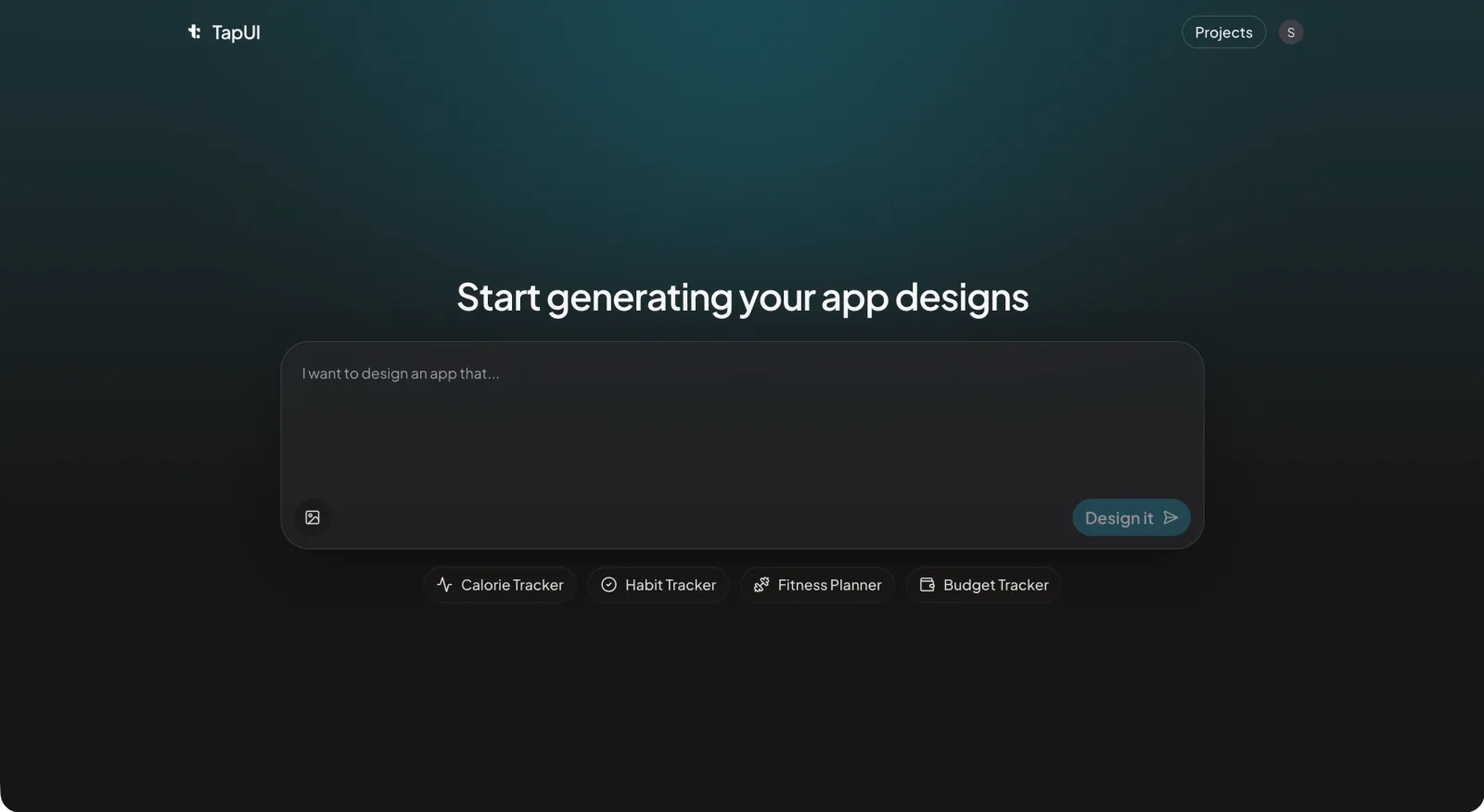 Describe your app in plain language in the TapUI Studio prompt box, and it generates polished mobile screens you can refine.
A few things that reliably help:
- Trade adjectives up. "Blue" is a guess; "deep navy" is a decision. "Modern" could mean anything; "glassmorphism" or "flat with soft shadows" means something.
- Name a reference. "Card layout like Airbnb" or "dark theme in the spirit of Spotify" communicates more in four words than a paragraph of description.
- State the non-negotiables up front. If you care about comfortable touch targets or strong text contrast, say so. The model won't add accessibility for free.
And resist the urge to cram everything into one giant prompt. Start lean, see what comes back, then add detail. It's far easier to build up from a simple generation than to untangle an overstuffed one.
The actual workflow
Here's the loop that works, end to end.
1. Explore wide to find a direction
Write a broad prompt and generate a few variations. Don't judge yet — you're looking for directions you wouldn't have thought of, including the "almost right" ones worth saving. AI is genuinely good at this part; let it surprise you.
2. Commit to one direction and sharpen it
Pick the variation that's closest and write a sharper prompt that names exactly what you liked about it. This second pass is usually noticeably more cohesive than anything from round one. That jump in quality is the whole reason iteration matters.
3. Build screen by screen in one style language
Break the app into its real views — onboarding, login, home, a detail view, settings — and generate each one with the same style language. Doing them one at a time keeps each screen coherent; asking for ten screens in a single shot tends to produce ten slightly different design systems.
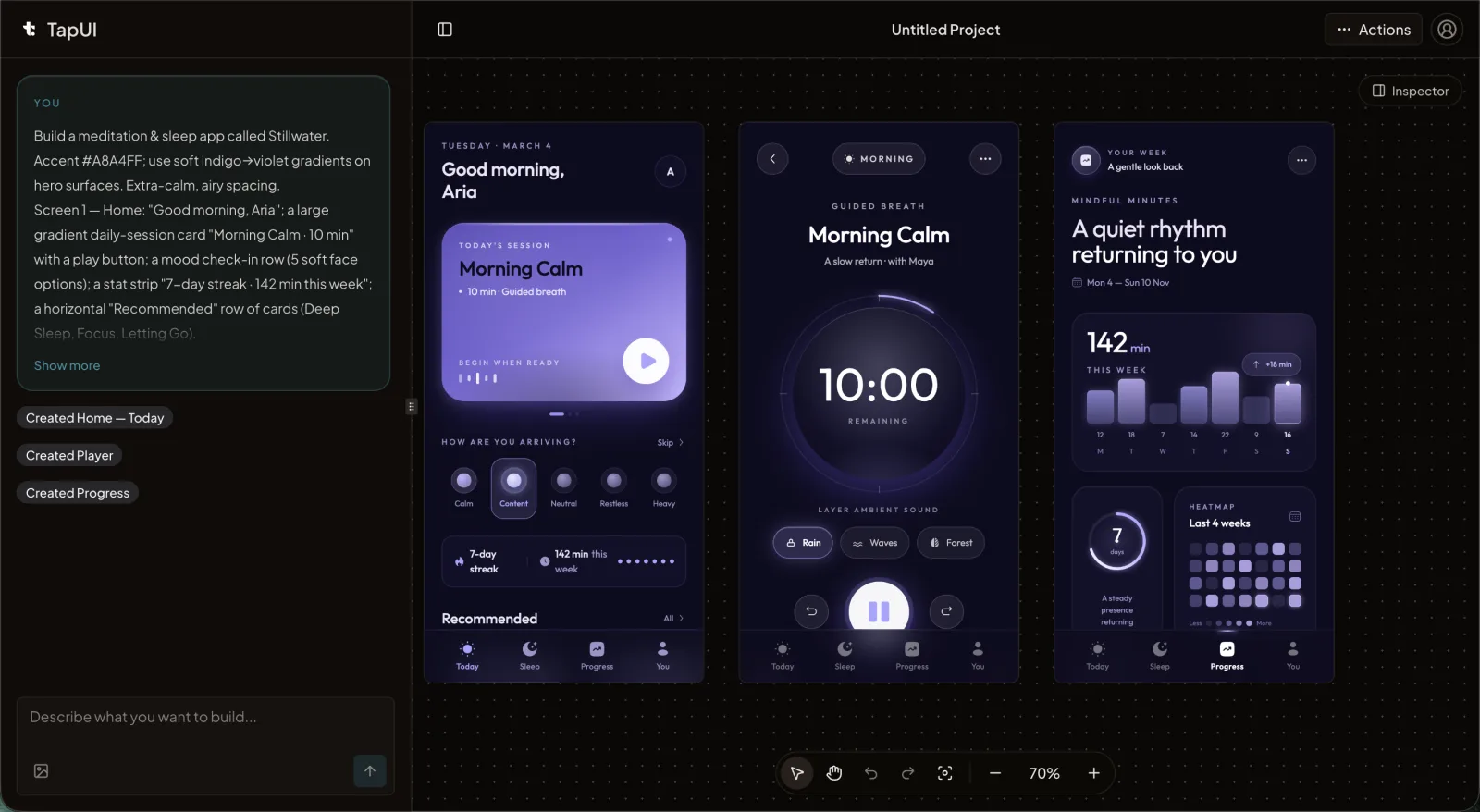 Refine each screen in the editor so the whole set shares one consistent style language.
4. Review the results like a skeptic
This is the step people skip, and it's where AI design earns or loses your trust. The model does not know accessibility standards, so check them yourself:
- Text contrast is comfortable to read (aim for WCAG AA — 4.5:1 for body text).
- Touch targets are big enough to hit without aiming (roughly 44×44px).
- Color isn't the only way you signal state — pair it with an icon or label.
- It follows the platform's conventions, not a generic mashup of iOS and Android.
Then pressure-test it with real content. AI fills screens with tidy placeholder text, but real usernames overflow and real product descriptions run long. A layout that only works with perfect dummy data isn't done.
5. Hand the designs off to whoever builds
Once the screens hold up, get them out of the tool and in front of whoever's building. Export the visuals for stakeholder review, and pass the screens to your developers as the reference they'll build from.
Designing the screens that matter most
A few screens carry more weight than others — and which one matters most depends on what you're building (a finance dashboard, a dating profile, a checkout). In general, these carry the most weight:
Onboarding should teach value in three or four slides, one idea each, with a clear way to skip. If you ask the AI for a "matching illustration style" across slides, it'll usually keep them visually consistent.
Dashboards are about hierarchy. Decide the single most important metric and make it the largest thing on screen; group everything else into cards. This is where users spend the most time, so optimize for a quick glance, not for cramming in features.
Forms are where pretty AI output most often hides bad usability. Label every field, show validation clearly, and cut every input you don't truly need. Always walk through the flow yourself — a beautiful form that's annoying to fill out is a failure.
Keeping it consistent
Consistency is what separates a polished app from a stitched-together one, and AI will not maintain it for you. You have to enforce it.
The simplest fix is a tiny style reference you reuse in every prompt — your exact colors as hex values, a few type sizes, a spacing scale, your button and corner-radius styles. Pasting "using navy #1a237e and coral #ff6b6b, 16px base spacing" into each generation does more for coherence than any amount of regenerating and hoping.
If your tool supports saved style presets or locked seeds, use them. And before you call anything final, put the screens side by side. Mismatched colors and uneven spacing are obvious in a row and invisible one screen at a time.
Mistakes that cost beginners the most time
- Over-stuffing the first prompt. You can always add detail. You can't easily simplify a confused generation — you just start over.
- Ignoring the platform. iOS and Android have different conventions. Name your target so you get bottom sheets and system fonts that belong there.
- Accepting the first result. The first generation is a starting point, not an answer. Mix elements from a few passes.
- Designing for placeholder data. Test with the messy, variable-length content your app will actually hold.
- Treating accessibility as optional. Small touch targets and weak contrast quietly exclude real users. Verify it every time.
Where AI helps and where it doesn't
It's worth being clear-eyed about this. AI is excellent at execution — generating layouts, applying a style, producing variations on demand. It's weak at the things that actually decide whether an app is good: understanding who you're building for, framing the real problem, and making the judgment calls a generic average can't make.
So the honest framing is that AI compresses the production of design, not the thinking behind it. You still have to know what you're trying to build and who it's for. What you get back is hours of manual screen-pushing collapsed into minutes of describing and refining — which, for most founders and product teams, is exactly the part worth automating.
FAQ
Can AI design a complete app UI from a text description?
Yes. Tools like TapUI turn a plain-language description into polished mobile screens you can edit and refine. AI handles the production — layouts, styling, variations — but you still make the judgment calls about who you're building for and what each screen needs to do.
What makes a good prompt for AI UI design?
Cover four things in order: context (what the app is and who uses it), style (the visual direction), components (what's on the screen), and constraints (the specifics like exact colors and spacing). Start lean and add detail across iterations rather than cramming everything into one prompt.
Does AI handle accessibility automatically?
No. The model won't add accessibility for free, so review every result yourself: check text contrast (aim for WCAG AA, 4.5:1 for body text), confirm touch targets are roughly 44×44px, and make sure color isn't the only way you signal state.
How do I keep multiple AI-generated screens consistent?
Reuse a tiny style reference in every prompt — your exact hex colors, a few type sizes, a spacing scale, and your button and corner-radius styles. Use saved style presets or locked seeds if your tool supports them, and review the screens side by side before calling anything final.
Can I hand AI-generated designs to developers?
Yes. Export the visuals for stakeholder review and pass the screens to your developers as the reference they build from. TapUI generates the designs and screens; your developers implement them in whatever framework your app uses.
Try it on something small
The fastest way to learn this is to do one screen. Redesign the login or home screen of an app you use every day: write a four-part prompt, generate a few options, sharpen your favorite, and run it through the review checklist above. You'll have a feel for the whole loop in under an hour.
TapUI offers a free tier alongside paid Starter and Pro plans (billed monthly or yearly), so you can run a real screen through it before deciding whether it fits how you work. Start with TapUI and turn your next app idea into mobile screens you can actually use.